Showing posts with label pc hardware. Show all posts

Saturday, September 13, 2014

HARDWARE - My New Super-PC (updated)

Well.... after 20+ years my old WinXP desktop PC died, gave up the ghost.

So I got new custom built PC, went BIG.

  • Windows 7 Pro  64bit
  • CPU:  Intel Core i5-4690 @ 3.50GHz (aka Quad Core)
  • Memory:  8gb
  • Hard Drive:  4 Terabytes, Hybread (Solid State + SATA)
  • Video Card:  GeForce GTX 770 CUDA Core, 2k memory

What the hybread hard does?  Think of the SSD as a super-cache.  The drives copies the most used programs to SSD, which is actually memory, and works much faster.

NOTE:  The original build was with Windows 7 Home Professional.  I used Windows Anytime Update to change to Windows 7 Pro.  The update was flawless and took under 15min.


AND..... I upgraded to broadband network (AT&T U-verse, really had no choice, they're dumping DSL).  Speed test below.


via Speed Test NET

Tuesday, January 28, 2014

HARDWARE - My New ThinkPad Ubuntu Laptop

UPGRADE  TIME....

My Clevo Ubuntu (Linux) Notebook was getting long-in-the-tooth, and having sound problems.

So I got an upgrade from the fine people at Linux Certified.  The same people who shipped me the Clevo.

Here are the main specs:

  • Intel Quad-Core i5-3230M, 2.6 GHz, 3MB L3 Cache 64bit
  • Hard Drive 500 GB SATA
  • 3gb RAM
  • Display 15.6" HD at 1366 x 768 (aka Widescreen)
  • DVD Writer Dual Layer 
  • Built-in 10/100/1000 LAN
  • Integrated Mini-PCI 802.11 WiFi Card
  • Smart Li-Ion 6 cell battery
  • Had it pre-loaded with Ubuntu 13.10

Need I say, it's fast, and with that memory everything runs in memory.

This time I went with the Ubuntu (aka Unity) Desktop.

(click for larger view)


I had said in the past that I didn't like Unity, but now that I understand it, it's not that bad.  Also has less problems with some apps running GNOME Desktop.

The Unity Launcher (aka Strip) to the left is a combination Taskbar and Quick Launcher.  When you launch an app the app's icon will appear in the Strip marked with a white arrow that indicates its window is open.  If you minimize a window/app the Strip icon acts just like the button in the Windoz Taskbar, you click it to re-open the window

The addition is you can 'lock' an app's icon to the Strip, making it a quick-launch icon.  Every icon on my Strip shown above are quick-launch.

The main complaint I had against Unity is not having a treed-menu.  That is why I used GNOME Desktop on my old Clevo.  GNOME has a menu.

But there is a plug-in that puts a Classic Menu Button (Global Bar, top right) for Ubuntu.


You click this button and you get a classic tree menu, nice.


Here's a link to Lenovo's spec page.

Note that I have Steam installed.  Now I have a rig that can play games without a hitch.

Saturday, May 18, 2013

HARDWARE - ASUS Xonar DS 7.1 Audio PCI Card

My WinXP desktop system's audio card was a bit 'long in the tooth.'  So I thought I'd search for a new one via Google.

I found something I did not expect, the ASUS Xonar DS 7.1 Audio PCI Card. (I bought via Amazon)

Why?  See below:

(click for larger view)

The Smart Volume Normalization (SVN) is something I've been waiting for ever since I discovered a way to have my iTunes/iPod do the same thing.  That is, play my iPod music without having to adjust between loud and low songs (set volume and forget).

For iTunes/iPod all I had to do is make sure to enable Sound-Check on both, and run a utility called iVolume.  iVolume fine-tunes the Sound-Check value by scanning each song and setting it to the master volume level you set in iVolume.  Which is what SVN does in the Xonar.

Here's the card:

(click for larger view)

Here's the Audio Center:

(click for larger view)

Note that I have SVN enabled (turquoise highlighted button) and the level bar-indicator is titled [Smart Volume].

The [ ^ ] opens the full menu list.

SVN works!  I set the master volume knob and everything plays at that volume.  No more having to adjust for differences between inputs (games, music, WEB, etc).

Xonar DS also includes Flex Bass which can be enabled for those who do not have a powered subwoffer speaker system.

CAUTION:  If you have a game that does NOT automatically detect a new audio card and run a configuration utility, you may have to start a new-game.  This is the case with Skyrim.

WARNING:  Using the GX (Gamers) DSP Mode can cause some games to crash.
Examples:  Oblivion, Skyrim, Inquisitor RPG

Saturday, May 12, 2012

HARDWARE - My Home Computer Systems

OK, time for more bragging about my computers.

DESKTOP:

(click for better view)


  • Manufacturer: MICRO-STAR INTERNATIONAL CO., LTD

  • Model: MS-7222

  • North Bridge: VIA P4M800 Pro/P4M800 CE/VN800/CN700 Revision 00

  • South Bridge: VIA VT8237 Revision 00

  • CPU Name: Intel(R) Pentium(R) 4CPU 3.00GHz Hyper-Threading

  • CPU Socket: Socket 775 LGA

  • Max CPU Speed: 1500 MHz

  • Maximum Memory Capacity: 1024 MBytes

  • Maximum Memory Module Size: 32 MBytes

  • Memory Slots: 2 (= 2gb memory)

  • Memory Type: DDR2

  • Disk C: 55 GB Available, 80 GB Total, 55 GB Free (Internal IDE HD0)

  • Disk D: 166 GB Available, 217 GB Total, 166 GB Free (Internal IDE HD0)

  • Disk E: 2718 MB Available, 19077 MB Total, 2718 MB Free (Internal IDE HD1)

  • Disk F: 4 GB Available, 18 GB Total, 4 GB Free (Internal IDE HD1)

  • Disk H: 51 GB Available, 149 GB Total, 51 GB Free (External Firewire)

  • Disk J: 321 GB Available, 485 GB Total, 321 GB Free (External Firewire partition)

  • Disk K: 398 GB Available, 445 GB Total, 398 GB Free (External Firewire partition)

  • Video Card: nVidia Corporation GeForce 7900 GS 512mb AGP

  • HP DVD Writer 1035r (Internal IDE)

  • Memorex Recorder 1394/USB20 Drive IEEE 1394 SBP2 Device (External Firewire)


LAPTOP:

(click for better view)


  • CPU: 2x Intel(R) Pentium(R) Dual CPU T3400 @ 2.16GHz

  • Memory: 2021MB (278MB used)

  • Operating System: Linux Mint 10 Julia

  • Kernel: Linux 2.6.35-32-generic (i686)

  • Compiled: #67-Ubuntu SMP Mon Mar 5 19:35:26 UTC 2012

  • C Library: GNU C Library version 2.12.1 (stable)

  • Default C Compiler: GNU C Compiler version 4.4.5 (Ubuntu/Linaro 4.4.4-14ubuntu5.1)

  • Display Resolution: 1280x800 pixels

  • OpenGL Renderer: Mesa DRI Mobile Intel® GM45 Express Chipset GEM 20100330

  • DEVELOPMENT: x86/MMX/SSE2

  • X11 Vendor: The X.Org Foundation
  • Monday, April 23, 2012

    HARDWARE - Intel 13 Quad-Core!!!!

    "13 Quad-Core Intel Ivy Bridge Chips Expected" by Ian Paul, PC World 4/23/2012

    Intel's new Ivy Bridge chips are expected Monday, promising significant improvements in speed and power usage plus built-in USB 3.0 support all wrapped in a smaller package compared to Intel's current Sandy Bridge chips.

    The first wave of Ivy Bridge chips will reportedly include 13 quad-core processors designed primarily for desktops. Dual-core processors meant for Ultrabooks, such as Intel's Cove Point concept device, and other hardware will roll out "later this spring," according to a BBC report.
    Tri-gate Transistors

    The BBC forecast is in line with Intel announcements such as one last Wednesday that the first round of Ivy Bridge chips aren't for Ultrabooks. The new chips are also the first to use Intel's new 22-nanometer manufacturing process as opposed to Sandy Bridge's bulkier 32nm design. To give you an idea of how small 22nm ,is Intel says you could fit 100 million 22-nanometer transistors on the head of a pin (about 0.05 inches in diameter).

    Ivy Bridge transistors are also different from those on previous chips thanks to Intel's new tri-gate technology. Instead of cramming flat, two-dimensional transistors onto each processor, Ivy Bridge chips have 3D transistors that use a small fin rising up from the silicon surface. Intel previously said the new transistors will allow its chips to be up to 37 percent faster than previous processors. However, the BBC quotes Intel Vice President Kirk Saugen claiming the first round of Ivy Bridge chips will improve performance and power efficiency by 20 percent compared to Sandy Bridge.

    Intel's hardware partners are reportedly working on more than 300 mobile products, according to Saugen, and more than 270 different desktop devices (including many all-in-ones) using Intel's Ivy Bridge microarchitecture. That may be good news for Mac ,fans who are hoping to see new Ivy Bridge chips in upcoming all-in-one iMacs since the new processors may not be coming to MacBooks right away. Servers packed with Ivy Bridge-based Xeon chips are also expected before the summer. Details about upcoming Windows desktops packed with Ivy Bridge processors could come Monday or later in the week.

    Intel's Ivy Bridge launch in late April comes after reports that a manufacturing delay would set the launch back to as late as June.


    Cute video

    Wednesday, November 23, 2011

    WINDOWS - CD/DVD Disappears From My Computer

    This is a "this has never happened to me before" post.

    I have an internal DVD-RAM drive (DVD Recorder, multi-foremat) and when I opened My Computer I noticed that it was missing. All my other drives (internal and external) did show.

    I've had this DVD drive for years with no problems.

    So, what to check:
    • Rebooted and checked BIOS to see the DVD drive listed

    • Used Device Manager, under DVD/CD-ROM drives to see list (see screenshot)

    My HP DVD Writer was listed in both places.

    Normally this drive was listed as G: but there was no such drive in My Computer.

    Solution:

    Open Disk Management (in Computer Management) and scroll-down to where your CDs are shown in the right (see screenshot). Each drive SHOULD have a Logical Drive Letter assigned.

    I found that one CD/DVD drive had no Logical Drive Letter.

    You right-click on the drive on the right panel, select Change Change Drive Letter and...., then (in this case) [Add] a drive letter. The dialog will show the next available letter.

    In this case it showed G: which is what my HP DVD Writer should have been. Clicked [OK] and my DVD displayed AFTER I closed Computer Management.

    (click for better view)


    Note that this screenshot was taken AFTER I reassigned my HP DVD Writer as G:, and CD-ROM 0 is actually my external DVD-Recorder.

    Friday, August 12, 2011

    SOFTWARE - EaseUS Partition Master Pro

    An excellent hard drive partition utility, EaseUS Partition Master Professional.

    All Partition Master Pro's features can be seen in the sidebar of the screenshot of the Main Dialog.

    Especially note the "WinPE bootable disk" under Tools. This is also available from Partition Master's start menu list as "Create bootable disk." Partition Master comes with an ISO image that is written (using either option) to a CD and runs the entire utility when you boot to the CD. This is the best feature, and I suggest using this CD for the most trouble-free method of using this utility especially for operations on your boot disk (C:).

    Note the dark purple color designates a Primary Partition, the cyan is a Logical Partition.

    In the screenshot, both Disk1 and Disk2 are external Firewire Hard Drives, and are seen by Windows (WinXP SP3) first.


    (click for better view)


    NOTE: This is better than MimiTool's Partition Wizard Pro.

    Wednesday, June 29, 2011

    HARDWARE - A New Type of Mouse

    This is so evolutionary I had to post it

    Celluon evoMouse - the evolution of the mouse

    Thursday, June 16, 2011

    SOFTWARE - MiniTool's Partition Wizard Pro

    This is about a hard drive management tool form MiniTool, Partition Wizard Pro.

    In the past (long, long time ago; in a galaxy far, far away) I used Partition Magic from Symantec. Problem, Symantec no longer supports it, AND it does not work with today's large hard drives. In fact it can screw-up your hard drive if you [OK] at the message when you launch Partition Magic (sees a non-existing problem with the drive).

    I had to find an alternative because I had replaced my old HD0 (C: & D:) with a larger one and had to resize the partitions after recovering the image backups of each drive.

    The answer is MiniTool's Partition Wizard Pro. The screenshot below is of my home system with my larger HD0 (aka Disk 2), C: highlighted, after resizing.

    (click for better view)

    For those that notice, the "Disk" order is what Windows sees after boot. "Disk 1" (H:Games4) is a Firewire drive and Windows sees that first.

    CAUTION: You should run CHKDSK on the drive after your done. Example = chkdsk c: /f/v

    List of features:
    • Resize/Move Partition: Easily resize/move partition without data loss

    • Create, Format, Delete Partition

    • Convert Partition format from FAT to NTFS

    • Hide and Unhide Partitions, set active partition, label drive letter

    • Merge Partition

    • Hot Extend Partition without reboot

    • Change cluster size without data loss

    • Support Linux Ext2, Ext3, Ext4 (file systems)

    • Partition Copy: Copy entire partition to unallocated space with high performance file-by-file, moving technology; backup or move data without any data loss

    • Partition Recovery: Scan disk to restore deleted or damaged partitions

    • Hard Disk Copy: Copy an entire disk to a different diskquickly and easily with data clone technology. Backup disk data without data loss

    • Support Windows 32/64 bit Operating Systems

    • Visually demonstrate your disk/partition configuration to preview changes before apply

    • Support RAID

    • Support single disks or partitions larger than 2 TB

    • Support up to 32 hard disks within one system

    • Set partition as primary

    • Set partition as logical

    • Rebuild MBR (must use if you copy a boot partition)

    • Convert Dynamic Disk to Basic Disk

    • Disk Surface Test

    • Partition Surface Test

    • Change Partition Serial Number

    • Change Partition Type ID

    Wednesday, March 30, 2011

    HARDWARE - New nVidia GeForce GTX 590

    nVidia GeForce GTX 590

    Page includes demo shows and videos.

    Here's the YouTube video
    (suggest let full download before viewing)


    One caution, when viewing the video pay attention to the requirements to get top performance for this video card. It is NOT for your common desktop system. Also, note the spec for DirectX 11 = this is intended for a Win7 system, PCIe.

    Also, you may want to look at EVGA Precision Utility.

    It's free and took me just minutes to get working to display what I choose (screen shot below). Just remember to enable the EVGA Precision On-Screen Display Server which allows OSD during game-play AND add your game EXE to list in the server dialog.

    (click for better view)

    Thursday, August 26, 2010

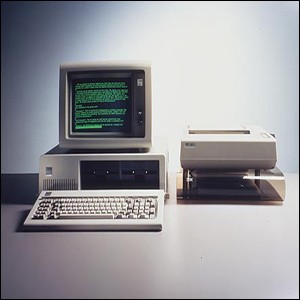
    HAPPY BIRTHDAY - The PC is 29

    Birth of the PC

    The IBM PC was announced to the world on 12 August 1981, helping drive a revolution in home and office computing.

    The PC came in three versions; the cheapest of which was a $1,565 home computer.

    The machine was developed by a 12-strong team headed by Don Estridge.

    I owned one of these, just as you see here.

    But it was a replacement for my supper-duper Tandy TRS-80 (aka Radio Shack Trash-80) with max 64kb memory, two 180kb 8" external floppy drives, B&W 80x25 monitor (no graphics), and 1200 baud external modem. WOW!

    Am I dating myself?

    Tuesday, August 24, 2010

    HARDWARE - Motherboard Info

    This post is about the best way to get hardware information about your Motherboard.

    My recommended utility is CPU-Z form the CPUID people.

    You can read the specs from their page. Essentially, you need a newer motherboard that has the features to allow CPU-Z to access the information.

    Below are screenshots for my home WinXP SP3 Pro Desktop system are below so you can see what you get using this utility.

    Click screenshots for better view


    ("HT" = Hyper Threading = near Due Core performance)


    Wednesday, December 9, 2009

    HARDWARE - Have a Legacy System?

    Is your PC a Legacy System?

    In this case I am talking about the hardware in your system being "old." The problem is getting hardware replacements because they are no longer manufactured.

    But don't give up. There are many suppliers who specialize on stocking legacy hardware or even entire systems.

    For example, my Desktop System at home is legacy because:

    • I use IDE drives (2 ports)

    • AGP8X video port

    • Floppy

    I just have too much on my drives, etc., to do a complete reinstall if I wanted to upgrade (for example) an Intel Core 2 processor motherboard. Or at least I thought so at the time.

    When I first looked at Intel Core 2 motherboards, they came with only one IDE port, some had no Floppy port, and none had an AGP port.

    I did upgrade, but to a legacy motherboard that could use a Pentium 4, LGA775 socket, 3GHz, Hyper Threading. So I get very good speeds even with high-resource games like Bioshock, Assassin's Creed, Far Cry 2, or Fallout 3.

    The other day, because my video card started to go, I was searching around via Google, and lo-and-behold I found a motherboard WITH all the legacy support I needed AND could use Intel Core 2 LGA775 socket! Also, I could use my existing Processor if I wanted to.

    It is the P4M800PRO-M (V2.0) motherboard from ECS Elitegroup. AND I could (and did) order it from Amazon (for a very good price), in addition to a Intel Core 2, 3GHz, LGA775 socket. Even better, it supports 2gb max memory, but two different types Memory Sticks (4 memory slots, 2 of each type), including the memory I already have.

    This means, when my present motherboard goes out, I'll have an upgrade motherboard ready.

    This is just to show my readers not to give up on upgrading or repairing your system at low cost.

    Why did I order a replacement motherboard when I don't need one now? It is still a legacy motherboard and ECS does not manufacture it any more. So I got it while I could.

    By the way, the Google search string I used (including the quotes):
    motherboard "lga775 socket" agp8x

    There were other variations, but that was the basic search line.

    Saturday, September 12, 2009

    HARDWARE - What a Difference a Case Makes

    This post is about my latest hardware upgrade to my home Desktop PC, a new and improved case (aka enclosure), see image below.

    My old case was 6yrs old and got very hot with the other high-performance hardware I have installed. See the graphs captured by HWMonitor Pro (shareware version) during game-play and you can see the improvement.

    Antec 300 Enclosure
    (click image to go to WEB page)


    The Antec 300 comes with 2 120mm fans, one on top (seen in image) and the other in the top-rear. But you can add 3 optional 120mm fans. One on the side (seen in image) and 2 behind the front grill below the blank-out plates. I added the side fan and one front fan.

    The design is a big improvement over my old case:
    • Power Supply (PSU) is mounted in the bottom, my old case had the PSU mounted at the top just over the CPU and Memory Sticks; all that heat in one area and no top ventilation

    • The provided stowage with reusable ties for all the cables you do not use

    • You can see that the how large the front grill is, AND they have a removable/washable filter on the inside

    • They use Knurl Screws where possible, you can open the case with no tools

    • They provide plenty of extra screws, stand-offs, and Knurl Screws

    And the improvement? Just see the following graphs (see closeups for the numbers):

    1. CPU Fan Before/After


    2. (click for images for larger view)

    3. CPU Temp Before/After


    4. (click for images for larger view)

    5. SYSTEM Temp Before/After


    6. (click for images for larger view)


    Also, PCTech Video Review

    (need I say, the Antec 300 is not their latest)

    Thursday, April 2, 2009

    WINXP - Keeping Hardware Drivers Up-to-Date

    This post is about ways to keep your PC's hardware drivers updated. Sometimes it is not easy. First, some definitions.
    • FIRMWARE:


    • Firmware are NOT Drivers. They are code on ICs on your hardware.

      The over-riding rule in Firmware, "If it ain't broke, don't fix it." This is especially true of the BIOS Firmware on your motherboard.

      There is NO "rollback" when updating Firmware.

      You update Firmware ONLY is something does not work, and you get the update from the manufacturer of the hardware, NOT a 3rd party.

    • DRIVERS:


    • Drivers are files that are part of your OS (WinXP) and allow you OS to "talk to" the hardware.

      WinXP has a rollback feature for drivers.

      It is relatively easy to upgrade or downgrade drivers.

    There exists easy driver updates, especially if the manufacturer provides an WEB base utility like nVidia does.

    But not all manufacturers have easy driver updates. You have to go to their Support and see if they have a driver-download page. Even then, there is a very, very confusing issue with knowing if you need an updated driver.

    It has to do with the version stated for the driver files. Here's an example that happened to me recently, there was a driver update VIA Rhine Ethernet v1.14, no problem, my DRIVER was v2.25, no need to update. WRONG!

    The v1.14 is the version of the driver update FILE, not the version of the driver. The driver inside the FILE was VIA Rhine Fast Ethernet v3.35

    What you can do is use a driver WEB site. Here are 2 that I use.
    • DriverAgent


    • This site has a tool that will scan your system and show you what drivers you have AND if there are updated versions. Note, it will show ALL drivers in WinXP, therefore you should only consider updating the ones you actually use.

    • DriverGuide


    • This is a good site for finding older drivers for hardware no longer supported. You have to know what version of the hardware is AND what version of the driver you have (if you have it).

      They also have their own Driver Scan tool.

    • Uniblue DriverScanner (update 7/20/2009)


    • Just discovered this one. Has a very good GUI, free to download and run a Scan, but you have to Register (aka pay $29.95 to download driver updates).
      Also includes a Driver Backup which you should do BEFORE updating your drivers.

      Found 2 outdated drivers on my home system, one of witch improved my gaming after installing. Less, much less, lockups that required manual Restart.

    Monday, March 23, 2009

    COMPUTERS - Video, Sound, and PCI Latency

    There is an on-going problem with video and sound, especially with games.

    The issue is bad/choppy sound or even lockups when playing games. This MAY be very apparent when you have a Creative Labs sound card (even the FX model).

    The cause is usually a clash between your system accessing the video and sound cards, which tend to be fast and furious during game play. Both devices use much resources when sending/receiving data, especially at today's high speeds.

    The problem resides in what is known as PCI Latency (see applicable paragraph Auto Configuration in article).

    PCI Latency is a function of how long any PCI device holds open access to the bus before passing on to the next device, and is handled by the BIOS. Some, but not all, devices have a means to program the latency timing (in multiples of 8).

    Problems are caused by the PCI Latency timings for video and sound cars being too close together. This is, the video card still needs to process data but the bus gets released to the sound card, or visa versa.

    The fix is to set the PCI Latency timings at LEAST 8 apart. That is the PCI Latency for the sound card at least -8 of the video card. On my home PC, all PCI Latency = 56 as set by the BIOS. This resulted in very choppy sound including pops & clicks.

    I found one way to fix this, the PCI Latency Tool.

    You install this tool, change the sound card latency, then apply and SAVE. Saving the setting will reload your settings on bootup. Make SURE you read the instructions for this tool.

    CAUTION: DO NOT move or rename the [Start], Programs, folder the PCI Latency Tool is installed in.

    On my home PC, I used this tool to set the latency for my sound card to 48:
    • Video = 56 (BIOS default)

    • Sound = (56 - 8) = 48

    As a result, I get very, very little chopping/popping. And IF I do, it is very low volume.

    Friday, January 30, 2009

    HARDWARE - On the Lite-Side


    DO NOT try this at home!

    "Strip Out The Fans, Add 8 Gallons of Cooking Oil : Dousing Your Athlon FX-55 With Eight Gallons Of Cooking Oil?" Tom's Hardware

    Common sense dictates that submerging your high-end PC in cooking oil is not a good idea. But, of course, engineering feats and science breakthroughs were made possible by those who dared to explore the realms of the non-conventional. Members of the Munich-based THG lab are only too happy to confirm this fact. And not only did we find that our AMD Athlon FX-55 and GeForce 6800 Ultra equipped system didn't short out when we filled the sealed shut PC case with cooking oil - but the non-conductive properties of the liquid coupled created a totally cool and quiet high-end PC, devoid of the noise pollution of fans. The PC case - or should we say tank - also offered a new and novel way to display and show off your PC components.

    Friday, December 5, 2008

    COMPUTERS - Hard Drives

    Technically, what are hard drives in the computer world?

    The generic category is Storage Device, but this applies to more than hard drives. Example, a USB Flash Drive is also a Storage Device.

    HARD DISK DRIVE

    A hard disk drive (HDD), commonly referred to as a hard drive, hard disk, or fixed disk drive, is a non-volatile storage device which stores digitally encoded data on rapidly rotating platters with magnetic surfaces. Strictly speaking, "drive" refers to a device distinct from its medium, such as a tape drive and its tape, or a floppy disk drive and its floppy disk. Early HDDs had removable media; however, an HDD today is typically a sealed unit (except for a filtered vent hole to equalize air pressure) with fixed media.

    Read the full Wikipedia article for more info

    HOW HDDs RECORD & TRACK DATA

    First, HOW HDDs physically do what they do is a hardware issue. Your Operator System (OS) only deals with how file-data is written to the HDD and the OS has its own way of tracking the files.

    Your OS gets the physical address references from your HDD(s), essentially:
    • The physical address of each drive from BIOS (HDD0, HDD1, etc.)

    • The HDD physical addressing scheme is called LBA (Logical Block Addressing)
    • For each HDD, the Master Boot Record (MBR) located on Platter 0, Track 0, Cylinder 0 (aka LBA0)

    Among other things, the MBR contains the Primary Partition Table (PPT).

    IMPORTANT NOTE: The MBR is written to a special DOS FAT partition. What makes is special is that it MAY be a non-standard DOS size. The minimum DOS FAT size is 512kb (this is what Floppies are formatted in) and multiples (514/1024/1536/etc), but this special MBR sector MAY be less than 512kb. This sector could also include (example) "EISA Configuration" using 47mb DOS FAT.


    The MBR is written when your OS formats the drive. The PPT is how your OS keeps the data on ALL drive partitions on your system. Each HDD gets its own PPT that tells the OS how that drive is partitioned. The simplest is, of course, a single partition.

    But if a HDD has been partitioned to (example) 2 partitions, there would be 2 entries in the PPT with the data on each partition. This includes if the other partitions are for a different OS. Example; 1st partition WinXP and 2nd partition Vista (aka you have setup a Dual Boot system).

    Physically HDDs are divided into Platters, Tracks, and Sectors.
    • Platters: Disks that have 2 sides (upper/lower) with a magnetic coating that data is written/read

    • Tacks: Concentric circles where data is written/read

    • Sectors: Think pie wedges, this divides each track

    Since each Platter has 2 surfaces (upper/lower) Tracks are referred to as Cylinders (like a tin can). All upper tracks align with all lower tracks; and on HDD with more than one Platter, all upper tracks align with all lower tracks, on all Platters.


    The HDD keeps track (has a physical address or LBA) of each location on the HDD by Platter/Track/Cylinder. It is this address that is passed to your OS. There are reserved HDD addresses, such as LBA0 where the MBR is located. It is the LBA that is passed to your OS to track HDD contents.

    SIDE NOTE: This deals with the term "Partition" when use for HDD vs how the term is used in Mainframe Computers.
    • In Mainframes the term "Partitions" refers to how HARDWARE RESOURCES are allocated. In this context, a Partition can refer to a number of processors used, how many memory DIMMs are used, how many of the Storage Devices are used, how many Network Cards are used, etc.


    • The Storage Devices usually mean "packages" or sets of individual HDDs. Multiple HDDs can be "partitioned" to function as a single Logical Hard Drive (LHD), make 5 HDDs = 1 LHD. Note that when Windows refers to C: this is the LHD alias for HDD0, 1st Partition.

    I will post about the NTFS (NT File System) use by WinXP & Vista later.

    Tuesday, October 21, 2008

    COMPUTERS - Memory Upgrades

    The thing to remember whenever you want to upgrade you system's memory (RAM) is that the memory "stick" (DIMM) MUST be and EXACT match to your motherboard.

    Also, the ONLY authority on what RAM to use is the manufacturer of your motherboard. Do not go by a sales-rep recommendations, they are not technicians.

    In addition written specifications can be short of very important information. Two examples of Full memory specifications follow:

    1GB, DDR2, PC2-4200, ECC, Registered
    128Meg x 64, 240 Pin, DDR533, 1.8v, CL=2.5

    1GB, DDR2, PC2-4200, ECC, Registered, Fully Buffered
    128Meg x 72, 240 Pin, DDR533, 2.5v, CL=2.5


    Both of these DIMMs could NOT be installed on my previous motherboard because it was not compatible with "Registered" memory. If I had purchased memory through normal sources, where they did NOT list "Registered" in their specifications, I could have bought the wrong memory.

    The best-practice is to use a tool to scan you motherboard and tell you what memory is compatible with your motherboard.

    One such tools is available on 4AllMemory's site (see sidebar). You use [Check My System] and they download a small, temporary, applet that scans your motherboard and returns a WEB page showing you what you already have installed, open memory slots, and a list of compatible memory upgrades.

    The returned-page will list the actual motherboard memory part number for well known motherboards. For my MSI motherboard, they actually listed the MSI memory part number.

    By the way, I was pointed to 4AllMemory by corporate IT.