Showing posts with label winxp. Show all posts

Saturday, May 18, 2013

HARDWARE - ASUS Xonar DS 7.1 Audio PCI Card

My WinXP desktop system's audio card was a bit 'long in the tooth.'  So I thought I'd search for a new one via Google.

I found something I did not expect, the ASUS Xonar DS 7.1 Audio PCI Card. (I bought via Amazon)

Why?  See below:

(click for larger view)

The Smart Volume Normalization (SVN) is something I've been waiting for ever since I discovered a way to have my iTunes/iPod do the same thing.  That is, play my iPod music without having to adjust between loud and low songs (set volume and forget).

For iTunes/iPod all I had to do is make sure to enable Sound-Check on both, and run a utility called iVolume.  iVolume fine-tunes the Sound-Check value by scanning each song and setting it to the master volume level you set in iVolume.  Which is what SVN does in the Xonar.

Here's the card:

(click for larger view)

Here's the Audio Center:

(click for larger view)

Note that I have SVN enabled (turquoise highlighted button) and the level bar-indicator is titled [Smart Volume].

The [ ^ ] opens the full menu list.

SVN works!  I set the master volume knob and everything plays at that volume.  No more having to adjust for differences between inputs (games, music, WEB, etc).

Xonar DS also includes Flex Bass which can be enabled for those who do not have a powered subwoffer speaker system.

CAUTION:  If you have a game that does NOT automatically detect a new audio card and run a configuration utility, you may have to start a new-game.  This is the case with Skyrim.

WARNING:  Using the GX (Gamers) DSP Mode can cause some games to crash.
Examples:  Oblivion, Skyrim, Inquisitor RPG

Friday, April 5, 2013

WINXP - Updates Coming to an End

"When will Microsoft pull the plug on your version of Windows or Office?" by Ed Bott, ZDNet 4/4/2013

Excerpt

Summary:  The countdown for Windows XP is about to get serious.  In one year, Microsoft officially stops supporting XP.  What happens when the clock runs out?  And how long until your current version of Windows or Office suffers the same fate?

For the next year or so, Microsoft will officially offer support for four versions of Windows for desktop and notebook PCs.

Windows XP, the oldest of the bunch, celebrates its 12th birthday this fall.  It kicks off a year-long farewell tour next week, counting down to April 8, 2014, when Microsoft officially ends its support.  XP lived longer than any version of Windows ever, getting multiple extensions on its retirement date to placate customers who said no to Vista.  But April 2014 is the end of the road.

XP will not get a last-minute reprieve.

Let me say that again, in boldface this time:  Microsoft will not extend the support deadline for XP.  If you're still relying on XP, you should have a plan to switch to a supported platform, whether it's from Microsoft or someone else.

April 8, 2014 is a deadline, not a death sentence.  PCs running XP will not stop working when the clock runs out.  In fact, XP diehards won’t notice anything different except an eerie quiet on Patch Tuesday.  Newer Windows versions, including Windows Vista, Windows 7, and Windows 8, will continue to get security patches and bug fixes via Windows Update, but not XP.  When the extended support period ends, so do those updates.  (Large enterprise customers who have custom support agreements with Microsoft and who are willing to pay dearly for the privilege might be able to get custom updates after the official end of support.  But consumers and small businesses will not have that option.)

None of this should be a surprise.  As I’ve noted before, Microsoft has a well-established support life-cycle for its software products.  It’s basically an agreement that the company makes with everyone who commits to Windows.  The terms of that agreement don’t change often, which is an important assurance for business customers who tend to be conservative in their approach to upgrades.

Six months after the launch of Windows 8, it’s become obvious that Windows 7 is the new Long Term Support version.  And I'm starting to get more questions from readers who are concerned that Microsoft is going to try to kill off Windows 7.

MY OPINION:  Microdunce can shove their to-hell-with-consumer policies up you-know-where.

I am NOT about to downgrade my PERFECTLY WORKING WinXP Desktop to a more hoggish, all eye-candy, version that will require me to manually reinstall over 100 apps.

Monday, September 17, 2012

WINDOWS - A Better Start Menu

This post is about my suggestion on a way for users to have a better Start Menu in Windows.

To summarize, instead of having all applications listed under [Programs] in the Start Menu (WinXP), have categories of applications. Here's my Start Menu:


As you can see, I have expanded to my [Games], [Adventure & RPG] category.

How did I do this? Edit the Start Menu folder:


In my opinion, this type of Start Menu is much simpler to navigate that dumping everything under [Programs].

Also, the shortcuts in this scheme are only those needed to run the app, or those related and used regularly. (how may times are you actually going to use the "Uninstall" shortcut, so why have it?)

Also, after installing applications and coping the needed shortcuts to my scheme, I move its [Programs] entry to a [Smenu] folder I create in the home-folder of the app so I do not loose what the install created.

You can do this in Windows 7 where Start Menu folder paths are:
  • Win7 User Start Menu:
    C:\Users\profile-name\AppData\Roaming\Microsoft\Windows\Start Menu\
  • Win7 All Users Start Menu:
    C:\ProgramData\Microsoft\Windows\Start Menu\ (normally this is a hidden folder)

Give it a try.

Thursday, January 5, 2012

WINDOWS - Window Management Utility

This post is about WindowManager by DeskSoft

WindowManager helps you to improve your work flow by remembering and restoring the position and size of your programs and windows. Many programs don't remember their position and size between sessions and even Windows explorer does not always restore windows to their last position. This is where WindowManager steps in and makes sure your windows are placed exactly where you want them every time you open them. WindowManager even allows you to lock the position and size of any window, so that it will always open at the same spot no matter where you move it. The window handling is fully customizable and you can set up special rules for your favorite or most frequently used windows.

Key Features:
  • Remembers and restores the position and size of your recently used windows

  • Supports explorer windows, programs, dialogs, etc.

  • Special rules for moving or sizing only, etc.

  • Ignore list for preventing position or size change

  • Fully customizable

  • Now with full Windows 7 and 64 bit compatibility

Supported operating systems:
  • Windows XP

  • Windows XP x64

  • Windows Vista

  • Windows Vista x64

  • Windows 7

  • Windows 7 x64

  • Windows Server 2003

  • Windows Server 2003 x64

  • Windows Server 2008

  • Windows Server 2008 x64

NOTE: I have tried this utility and found that it interfered with ONE window on my WinXP system. It caused the window to open in the minimized mode EVERY TIME even though the shortcut was set for normal mode. I tested this by disabling the utility, then the window would open as expected. I have removed it from my system. This is by no means saying that other users MAY find the utility works for them, especially if you NEVER use the [Save] option.

Thursday, November 3, 2011

UTILITIES - Move from WinXP to Win7

This post is for those who want to move your old WinXP system to a Win7 system.

CAUTION: I have not used this utility, so I cannot verify LapLink's claims.

PCmover Pro from LapLink

The Easiest Way to Move to Windows 7!

PCmover is the ONLY software that moves programs, files and settings from your old PC to your new PC – even restore from an image (or old hard drive) or perform an in-place upgrade.

The easy-to-use wizard will guide you in selecting which programs, files and settings you want on your PC. When complete, your new computer will have the personality and functionality of your old PC. And, PCmover is safe – it removes nothing from your old PC, won’t overwrite anything on your new PC, and includes an easy "Undo" feature.

Looking at the edition comparison table on their Overview page, the Professional edition is the only one worth the money. Also note the inclusion of their "High Speed Transfer Cable" if you order the boxed utility.

Also note the [Docs & Requirements] tab on the linked page. You can get the PDF docs to evaluate if this utility will do what you want.

Sunday, December 19, 2010

WINDOWS - Fix-It Solution Center

Due to a problem on my home system I was reminded of a site for fixing Windows problems.

Microsoft Fix it Solution Center

(click for better view)

For example, what I used to fix my problem was the top option (screenshot):
Diagnose and repair Windows File and Folder Problems automatically

The downloaded file installed PowerShell and ran the tool. I selected Other from the checkbox list and continued. The tool found that my Recycle Bin was corrupted (my problem) AND fixed it. Then I rebooted.

Have a Windows problem? Try it.

Tuesday, November 9, 2010

WINXP - My Documents Folder

I was answering a question on the Computer Help Forum (sidebar) when I realized that this subject should be posted here.

This has to do with the location of your My Documents folder. Specifically if you want to move it to another hard drive. This is specially handy if your C: is getting a bit tight (full) AND you have a second hard drive (like D:) has enough free-space.

Note that this move is transparent in the use of [Start] menu, Documents. After moving your My Documents folder, the menus get you to the correct folder.

Note that for this post I will use C: and D:

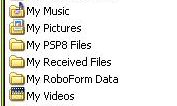
Lets start with some background info. There are a set of special folders in My Documents that have a Special Folder Icon (see screenshot) like My Music or My Pictures.


There are 2 ways to move your My Documents folder:

For Multi-User system (more that one user logs on)

Any user can drag-drop their My Documents folder from C: to D:
  1. In Explorer (aka My Computer) find your My Documents folder (in C:\Documents and Settings\your-profile-name)

  2. Open another Explorer window on D:

  3. Now drag your My Documents folder from C: to D:

You SHOULD get a set of folders in D:, here's where those Special Folder Icons come in.

For user John Doe, you something like:
  • John Doe's Documents
  • John Doe's Pictures

The same happens for any other user that is logged-on and moves their My Documents folder, but with their logon name.


Single-User system

Here is how I moved the My Documents folder on my home system

ORDER OF STEPS IS IMPORTANT

  1. Created D:\My Documents

  2. COPIED the full contents of C:\Documents and Settings\my-profile-name\My Documents to D:\My Documents, DO NOT DRAG/DROP

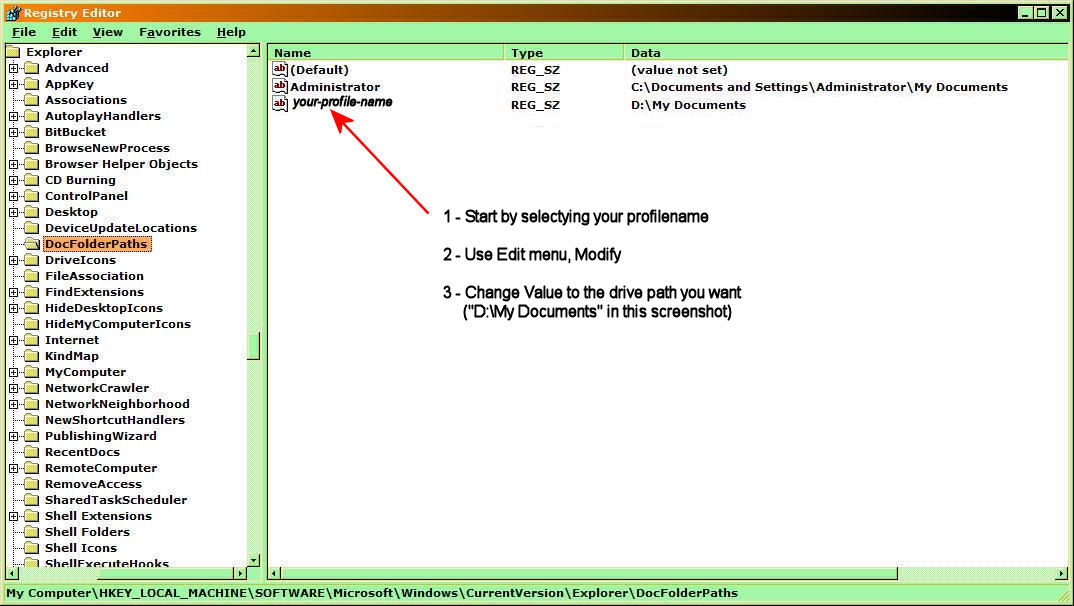
  3. IMPORTANT - use the Registry Editor to change my Document Path (see screenshot)


  4. (click for readable view)


  5. REBOOT

Regardless of which method you use, you now should test to see if it worked.
  1. Click [Start], Documents to open your My Documents folder

  2. Now find a simple file you saved before (suggest a text file) and open it

  3. Now use the File menu, Save As, and rename the file (example MyDocsPathTest.txt), save

If things went correctly, the MyDocsPathTest.txt should be in D:\My Documents but NOT in C:\....\My Documents.

At this point you can delete the contents of C:\....\My Documents, OR the entire folder. In my home system I deleted the My Documents on C:

Thursday, August 5, 2010

PC GAMES - University of Washington's Foldit

"In a Video Game, Tackling the Complexities of Protein Folding" by JOHN MARKOFF, New York Times 8/4/2010

In a match that pitted video game players against the best known computer program designed for the task, the gamers outperformed the software in figuring out how 10 proteins fold into their three-dimensional configurations.

Proteins are essentially biological nano-machines that carry out myriad functions in the body, and biologists have long sought to understand how the long chains of amino acids that make up each protein fold into their specific configurations.

In May 2008, researchers at the University of Washington made a protein-folding video game called Foldit freely available via the Internet. The game, which was competitive and offered the puzzle-solving qualities of a game like Rubik’s Cube, quickly attracted a dedicated following of thousands of players.

The success of the Foldit players, the researchers report in this week’s issue of Nature, shows that nonscientists can collaborate to develop new strategies and algorithms that are distinct from traditional software solutions to the challenge of protein folding.

The researchers took pains to credit the volunteers who competed at Foldit in the last two years, listing “Foldit players” at the end of the report’s author list and noting that more than 57,000 players “contributed extensively through their feedback and gameplay.”

Zoran Popovic, a computer scientist at the University of Washington who was a lead author of the paper, said, “If things go according to plan, not too long from now, such massive author lists should be commonplace.” Foldit begins with a series of tutorials in which the player controls proteinlike structures on a computer display. In the game, as structures are modified, a score is calculated based on how well the protein is folded. Players are given a set of controls that let them do things like “shake,” “wiggle” and “rebuild” to reshape the backbone and the amino acid side shapes of a specific protein into a more efficient structure.

A list of top scores for each puzzle is posted so that players can compare their results. Players may also collaborate in teams, tracking progress on a separate list of group scores.

The protein-folding problem can be solved by computers using statistical and related software algorithms, but it takes an immense amount of processing power.

“The problem is that these proteins are far, far more complex than a robotic arm, and can ‘fold’ in time frames measured in billionths of a second,” Duke Ferris, founder of the GameRevolution Web site, wrote recently. “It’s like trying to solve a million-sided Rubik’s Cube while it also spins at 10,000 r.p.m. And that’s for just one ‘fold.’ ”

In a comparison involving 10 separate protein-folding puzzles, video game players matched the results generated by software solutions in three of the puzzles, outperformed them in five cases and found significantly better solutions in two others, according to the scientists.

In addition to the acuity of human pattern-recognition skills, the researchers noted that players outperformed the best software tools in other ways as well, writing: “Humans use a much more varied range of exploration methods than computers. Different players use different move sequences, both according to the puzzle type and throughout the duration of a puzzle.”

The Foldit project was inspired by the volunteers who were contributing the downtime on their home computers to power a protein-folding program called Rosetta@home. The computer donors could see the progress of the program on their screens, and they began to note inefficiencies in the software’s folding approach. That led the scientists to look for ways to systematically harness the skills of the human volunteers.

PC GAMES - PC Gaming is NOT Going to Die

"Are we at the beginning of a PC gaming renaissance?" by Dan Ackerman, CNet News 8/5/2010

The past several years have seen a steady drumbeat of negative prognostications for PC gaming, both as a creative medium and as a viable business. High-profile releases were steered to living room consoles, with perfunctory PC ports at best, and messy DRM and hardware incompatibility made many of the remaining PC games more trouble than they were worth.

Magazines such as Computer Gaming World shut down (after an embarrassing sponsored name change to Games for Windows Magazine) and the only bright spot seemed to be the online multiplayer game World of Warcraft--even if other MMO entries found it hard to bottle that lightning twice.

No one was more at the forefront playing Taps for PC gaming than myself, having gone from a cheerleading booster to sober realist in the space of a few short years.

Yet, for the first time in a long time, I find myself much more interested in what's going on the PC side of the video game industry than the console side. My office and home laptops are suddenly buzzing with new and upcoming games, including StarCraft II, Civilization V, and OnLive's various streaming-game offerings--whereas this year's big list of holiday season console releases elicits a shrug at best, filled by the annual installments of mass-market cash cows. How did this potential reversal of fortune take place?

First, the companies that make PC games and the consumers who play them all seemingly decided it was OK to stretch the boundaries and leave their respective comfort zones. The seeds were planted over the past few years as game publishers opened the door to new ways to distribute their wares, losing the most frustrating parts of the DRM equation with services such as Steam and Battle.net (say what you will about online authentication, it works a lot better than discs, especially for those of us who like to install games on multiple PCs).

The next step was online stores like Good Old Games that offer classic games for less than $10, completely DRM-free. It's amazing how much goodwill one can build up by not treating customers like criminals.

Third, we opened the doors to new kinds of games, most notably Facebook and other social media games. These may not be what classic Quake-playing twitch jockeys were asking for, but games such as FarmVille and FrontierVille have brought tens of millions of new gamers into the PC-gaming fold. To say these aren't "real" games sounds an awful lot like the late Mitch Miller complaining that rock 'n' roll wasn't real music.

Finally, we largely eliminated the PC-gaming hardware arms race. It's no longer a point of pride to brag about how much your customers will need to spend on their computer rigs to even barely run your game.

StarCraft II is a great example of many of these lessons. The long-awaited sequel looks great on a high-end PC, but also will run easily on a wide range of systems, and even Apple's basic integrated graphics 13-inch MacBook. Installation is as easy as downloading a client software package or using a DVD, but once your game is registered, you don't need a disc, and you can reinstall the game anywhere. I'll also add, as someone who never played the original StarCraft (heresy, I know), the game is surprisingly easy to pick up, and a lot of fun for casual multiplayer matches between friends.

Civilization V (releasing September 21) is another example that works under the new PC-gaming paradigm. More than in previous installments, there's a real emphasis on hand-holding new players as needed, while not dumbing down the experience for anyone else. Using the online service Steam as a distribution channel is also key; I can especially see Civ V players wanting to have the game at home, and them maybe installing it on a work laptop when traveling. Like StarCraft II, the game is also very flexible with hardware requirements, and I got a prerelease version to run well on systems as basic as an 11-inch high-end Netbook with integrated graphics and AMD's dual-core Neo processor.

We've written several times about the new online gaming service OnLive. Though still in an extended beta period, the high-concept idea is that A-list PC games are rendered remotely on server farms while you play, and the actual gameplay footage is beamed back to you in real time. It sounds far-fetched, and I was highly skeptical of the entire concept. But in our hands-on tests, it let us play all sorts of current games on nearly any laptop, including Netbooks. The fact that anyone can hypothetically play even the most hardware-intensive PC game is a great equalizer, and shouldn't be underestimated as a potential entry point for new gamers.

However, there's one formerly big part of the PC-gaming universe that won't be making a comeback, and that's the classic first-person shooter. Case in point: the last major PC-only shooter that generated a lot of buzz was Crysis, a game specifically designed to show off your expensive high-end gaming hardware. A few years later, the big-budget sequel is being pitched almost exclusively as a console game. Sure, there will also be a PC version of Crysis 2, but that's not the development focus any more. Doom, Wolfenstein, Quake, and others were the driving force behind PC gaming for many years, but in this new PC gaming renaissance, they're not getting invited along for the ride.

Update: I'm apparently not alone in my rediscovered appreciation for PC gaming, Kotaku.com says, "Love it or hate it, PC gaming seems to be having a great year."

Wednesday, May 19, 2010

WINXP - Downloaded Installs (MSI)

This article is about software installers that you download, especially MSI files (Microsoft System Installer). Like: filename.msi

The problem that MSI files may present, is needing access to the original file to uninstall or repair the software.

In these cases, if you download the file to a temporary location then delete or move it after you run the installer, uninstall/repair options will not work because it will look for the MSI file in the original location.

Hint, if the download is a MSI file:

  1. Download it to whatever location is your normal for your downloads BUT do NOT run it yet

  2. Decide where you are actually going to install the program, example C:\Program Files\program-name, and create the folder manually

  3. Now create a sub-folder, like C:\Program Files\program-name\Installer

  4. Now move the filename.msi into the Installer folder and run it from there

  5. Make sure you choose a custom installation and select C:\Program Files\program-name as the install folder.

Doing this will ensure all uninstall/repair entries in the Registry point to the Installer folder where the original MSI file is located.

This procedure MAY also be needed if the download is a ZIP file that contains ONLY a MSI file.

Most installers that are filename.exe or ZIP files containing Setup.exe will not need this procedure because the correct Registry entries for uninstall/repair and made.

Wednesday, April 7, 2010

OT - Microsoft Outlook

Due to a recent experience with Microsoft Outlook I've decided to post on this.

Win7 does NOT include Outlook Express, so the Win7 Easy Transfer tool cannot import Express emails. It DOES import Office Outlook emails. (Win7 Easy Transfer works VERY well by the way)

Be aware that the format of Outlook mailbox files (filename.pst) changed after Outlook 2000. Outlook 2003 thru 2007 use MIME. To use Outlook 2000 mailbox files you must import them to newer versions of Outlook mailbox files.

  1. First without opening Outlook, rename your transferred 2000 mailbox files, examples:

    • Outlook.pst -> Outlook2000.pst

    • Archive.pst -> Archive2000.pst


  2. If you use a Transfer Tool (like Win7 Easy Transfer) AND you have not used Outlook yet, you should be offered the option to import mailbox files when you first start Outlook. Simply import the 2 renamed files above (they should be shown as being old format).


  3. Otherwise you can manually import via File menu, Data File Management.


  4. Use Outlook's Help: Search "Convert a non-Unicode data file" and you should see the link at the top of the listing.

    Just follow the step-by-step instructions to import:

    • Outlook2000.pst -> Outlook.pst

    • Archive2000.pst -> Archive.pst

Friday, March 26, 2010

WINXP - Parted Magic

Ever need to troubleshoot or fix a hard drive?

I've found a nice utility: Parted Magic (Open Source freeware)

Note the, "If you would like to use Parted Magic from a CD" on their page, which is a download of an ISO image you can write to CD, and have the Parted Magic LiveCD (bootable).

You boot to the CD and get a Linux Desktop (screenshot, outdated) where you can run hard drive tools.

  • Ghost for Linux

  • Linux Partition Manager (can handle NTFS partitions)

  • TestDisk from CGSecurity


I also like, that after reaching the Linux Desktop (in a RAM-Disk) it ejects the CD automatically. Therefore if you select to reboot, it will not boot to the CD.

(click for larger view)

Monday, March 8, 2010

WINXP - Shortcut to Activate Screen Saver

This is for those who need a quick way to activate your Screen Saver.

I found out that Locking your System (via the WinLogo Keyboard Shortcut) is NOT the same as activating Screen Saver. Locking your System MAY cause problems with automated functions like Scheduled Tasks or networking.

You need to create a Shortcut to your Screen Saver .SCR file.

See this Screen Saver How-To article. It includes step-by-step instructions and screenshots.

Once you have the Shortcut, you can place it wherever you want, like your Quick Launch Bar where you can activate your Screen Saver with one click.

Monday, February 22, 2010

WINXP - Cannot Disable Network Connections

I had a problem after the 2/10/2010 Microsoft Updates, I could NOT disable my Network Connection.

At home I normally disable/enable my Network Connection to provide increased security since I do not have a need to be online most of the time.

Note that this problem MAY not be caused by the updates themselves, since they did not cause this problem at work.


Disable Connection Error Dialog
(click for larger view)

I did find a fix via Google, rebuild of CatRoot2 folder, steps are....

  1. Boot to Safe Mode (no networking)

  2. Open Command Prompt, enter
    net stop cryptsvc
    and close dialog when stopped

  3. Goto C:\WINDOWS\system32\CatRoot2
    WARNING - NOT folder CatRoot

  4. Rename folder CatRoot2 -> OLDCatRoot2

  5. Reboot normally (forces rebuild of CatRoot2)

  6. If you can disable/enable Network Connections, you can delete folder OLDCatRoot2

Hope this works if you have this problem.

Tuesday, February 9, 2010

WINXP - The BETTER Disk Cleanup Utility

On a previous post I recommended using Windows Disk Cleanup (in System Utilities menu) to clean excess files on your hard drive. Well there is a much better utility.

CCleaner (freeware)

(click for larger view)

What makes it better can be seen in the screenshot, the selection of WHAT you want to clean, which is remembered for the next run. The list is more extensive than what Windows Disk Cleanup offers.

CCleaner includes the Applications tab. Also note the sidebar utilities.

The Applications tab allows you to clean MRU (Most Recently Used) lists for applications.

Also (note the screenshot) that you select what to clean BEFORE you analyze or run. Which is much different than Windows Disk Cleanup, with it's long wait.

Works with WinXp, Vista, Win7, Win2003 Server.

CAUTION: You do have to be careful on what you select to clean.

Friday, January 29, 2010

WINXP - WEB Browser Evaluations

What follows is my very personal evaluations of various WEB Browsers I've "played" with. My evaluations are not highly technical, which is why I used the term "played."

The evaluations were performed on 3 WinXP SP3 systems with IE8, 2 at work and my home.

One system at work is an IT Test Station (slow with low resources) with a vanilla WinXP SP3.

One system at work (my office desktop), and my home system, both run RoboForm and Star Downloader.

Browsers (my-rating):


IE8:

While IE8 has been improved since it initial release, like everything Microsoft, it is still a resource hog. And from what I see, slower than the other browsers I've looked at.

CAUTIONS:

To make IE8 fully safe, there are things you should set/enable.

  • Use Microsoft Update

  • If you are not using it now, just open Windows Update and look in the lower-right corner, you'll see the offer to upgrade to Microsoft Update. Use the link to open another window to install.

  • Open Internet Options, Advanced tab, and ensure Automatically check for Internet Explorer updates is checked.


Firefox 3.6:

I really like Firefox, especially since it automatically integrated RoboForm and can use Star Downloader.

It has the capability of installing Add-ons (Plug-ins & Extensions).

Plug-ins = additional code, usually a DLL file (like the ones for Star Downloader or Google Updater).

Extensions = Files that you can download/install from the Mozilla Firefox Add-ons WEB page. Example, ABC SpellBound spell checker.

There is one bug, at least with Firefox 3.5.x, the Print-to-Fit does not work properly. I used this Star War article as a test because in has tables. Firefox's Print-to-Fit chops off the right side of the tables.


Opera 10.10:

This is an offering from Norway, and is seen by many to be very good. From my testing is does look good, especially its in-built downloader and Password Manager (can be set to work like RoboForm with a Master Password).

The Print-to-Fit also works correctly and it has some nice configuration options.

The Bookmarks menu takes a bit to get use to, but if you add the Bookmarks Drop-Down button it becomes more familiar.

The one flaw I found is when I tried to use Blogger's editor (which I'm using now, in Firefox) it did not display correctly.

Safari 4 for Windows:

This is a MAC import of course. But, for Windows, it is NOT ready. Its configuration, even after 4hrs, was hard to understand. Like another evaluation article commented, it does not automatically have a Home button! Also, I found WEB page display problems with some sites.

This browser needs more work.

Friday, December 18, 2009

WINXP - Report on Firefox Browser

I have just started to use Mozilla Firefox Browser at home and work. So here's my impressions when run on WinXP.

(Note that I use Firefox on my Linux Ubuntu Notebook PC)

Off the bat, it is faster than IE8 (which I run at home/work).

Has some very nice Add-ons you can install via Firefox's Tools menu.

I am using Firefox to post this article as we "speak." It is very nice in appearance and ease of use.

I highly suggest you try it, and it's FREE.

Here is a list of recommended Add-ons:
  • Add Bookmark Here (adds this to the top of each Bookmark list)
  • CheckPlaces (verifies URL & can update Favcons)
  • FireFTP
  • ABC SpellBound (spelling checker)
  • CookieSafe (tracks cookies & includes Blacklist option)
  • View Cookies (easy way to view cookies on a page via Tools, Page Info)
  • Print Preview 0.7.1.4 (you can add a [Print Preview] button to Toolbar)
  • Default FullZoom Level 4.3 (easy way to set zoom factor)

I did find one fault which I've reported to Mozilla. The Firefox Print-to-Fit does not work properly.

Example you go to the Star Wars article in Wikipedia, there are tables. The print-out from Firefox, the tables are chopped-off on the right, in IE8 the full table is shown. Small annoyance as far as I'm concerned.

(12/22/2009 update)

Just discovered something due to a problem another Firefox user had.

Some sites may have music that plays in the background. The problem is the HTML code used is an outdated Microsoft Frontpage standard called "bgsound" that is IE only code.

It is not supported by Firefox. The new HTML standard is to use what is called an embedded object, like the code use by YouTube which you can add to your WEB page (like this blog).

Tuesday, November 10, 2009

WINXP - Backup Your System's Drivers

Ever had a hard time with drivers, especially on Laptops? Well I found a nice tool for backing up drivers. DriverBackup (donationware).

It is so good we use it at work to backup drivers on systems we send to customers. We keep a copy if needed for warranty repairs.

This is a screenshot for my DELL Desktop at work.


DriveBackup Main Window
(click for larger view)


DriverBackup can be run directly from a CD, install not required.

Features:
  • Driver Backup & Restore (uses the .bki file it creates)

  • Makes a tree (as shown in screenshot) for each driver with a copy of the driver files

  • You can have the option to have a copy of DriverBackup program files included

I have DriverBackup make the backup to a temporary folder C:\Temp, then write the contents to a CD.

Note that with the tree-copy of drivers, and you have SATA hard drives, you can copy the contents of the SATA driver folder to a USB Flash Drive and load these when you need to boot to your WinXP Setup CD (which does not have SATA drivers) so the CD can see your hard drive without problems. Note that loading extra drivers is done when the CD first loads, there is a message on the bottom Statusbar about loading extra drivers.

Tuesday, October 27, 2009

WINXP - WinXP to Win7 Migration

This is intended for those considering going from WinXP to Windows 7 (Win7).

First and foremost. Microsoft operator system release history should be taken into consideration. The initial release of their OS has always been buggy, and I'm talking about the official release not Beta or RC. Please consider NOT installing Win7 until AFTER Win7 SP1 appears in stores.

Here are some pages you should look at BEFORE buying or installing Win7:

  1. Upgrading from Windows XP to Windows 7 (Step-by-Step Guide)
  2. Clean install with Windows 7 Upgrade media
  3. Windows 7 Forum

The introduction video in #1 is very informative. Ending with, WinXP to Win7 migration is NOT simple. For one thing, it requires reinstalling all your applications from scratch, so you need all the install CDs or downloads before you start. SEE UPDATE BELOW!

In my personal case, I will never be going to Win7 because of massive application and game reinstalls that would be required. AND I already know that many of my games are not Win7 compatible. Also, my WinXP system is very, very stable. I am one who does not just get the latest-and-"greatest" of anything, and from what I see in Win7 there is nothing there that I need (especially all that useless eye-candy).

UPDATE 4/8/2010

"Migration Kit for Windows 7" from O&O Software

Whether you're installing Windows 7 on your old computer, or are planning to buy a new one that already comes with Windows 7, you’ll quickly notice that something very important is missing: your personal data, settings, and programs that were available on your computer’s former operating system. You could, of course, transfer each of them one by one, and then reinstall them in a tedious process, but there is a much easier way: Migration Kit for Windows 7.

With just a few clicks, you’ll be able to transfer all your data and programs onto a new operating system or computer. This is not only easier and less time-consuming, it's also much more secure because as part of the Migration Kit for Windows 7, you’ll also be getting the multiple award-winning O&O DiskImage 4 Professional Edition. O&O DiskImage will create a complete image of your system prior to migration, so that your familiar IT environment will be available to you whenever you need it. Windows 7 is not included in the price.

I have not use this kit, but the ability to move programs as well as user settings is a VERY big deal. Note I use O&O DiskImage at home, It's outstanding software.

I have use the Win7 Easy Transfer in setting up a new Win7 DELL for a friend and found it works very well, with exceptions of course (like Win7 not having Outlook Express). The O&O Software's Migration Kit for Windows 7 would be practical in this case because the Win7 DELL included a software upgrade to Office 2007.

Friday, October 16, 2009

WINXP - Microsoft Office Outlook

As I've said before, I do not normally deal with non-utility applications in this Blog, but here's another exception.

Users of Microsoft Office Outlook, especially for business, have a concern in keeping emails when they are addressing official business. Even home users may have an interest in keeping emails from family, banks, doctors, etc.

The first step is consideration of using a good sub-folder system.


(click image for larger view)


The above example shows several added features as well as the defaults used when creating a new email account.


  • Under Personal Folders (Outlook.pst file) the folder FEDEX was added

  • A Rule was created to check all incoming email, if it is From fedex.com, route to FEDEX folder

The Archive folder (Archive.pst file) is normally created by default, note the qualifier "normally."

You do have a Default Archive Settings under Tools menu, Options, Other tab, [AutoArchive] where you set the generic (aka default) rule.

The Default Archive Settings can be changed/overridden by right-clicking a folder, selecting Properties, AutoArchive tab (example; set Inbox to Do not archive items in this folder).

You should use Custom Archive Settings for most folders, and have the emails archived/moved to a matching folder inside the Archive folder. Or to permanently delete contents after n-days (example; delete contents of the Sent Items folder every 10days).

Remember to ensure that ALL folders under the Archive folder are never archived.

Note the special archive folder Proj (Proj.pst file), this was created to save emails that apply to a project I work on. These emails are official business documents and must be kept for tracking purposes. I manually move project emails after reading them (using "Move to folder" icon on Outlook Toolbar).

If you are running a business, a suggestion (using Property Management as an example):
Property Management deals with Clients (their property) and likely Vendors (landscapers, painters, repair, etc.) .

In this case, consider having sub-folders under Inbox


  • Clients

    • And sub-folder (Inbox\Clients\client-name) for each client by name and/or property

  • Vendors

    • And sub-folder (Inbox\Vendors\vendor-name) for each vendor

Then create Rules to, check all incoming email, if it is From client or vendor email-address, route to the applicable Inbox sub-folder.

This way you can easily see which client or vendor you receive email from. In the above example, FEDEX is a vendor.


OUTLOOK MAILBOX BACKUP

If your email is important, you should be backing-up your mailboxes, which are .pst files. Fortunately Microsoft has provided a (PSTBackup) add-in you can download and install, see the download-link in Using the Microsoft Outlook Personal Folders Backup tool.

CAUTION: You need to setup EACH .pst file you have via Backup [Options], see Using-article.

AFTER installing the Outlook PST Backup Tool (add-in) sometimes disappears from the File menu (listed as Backup).

Here's what to do:


  1. Open Add/Remove Programs and ensure that Microsoft Outlook Personal Folders Backup is listed

  2. IF NOT listed, close Outlook and download & install

  3. Open Outlook, select Tools menu, Options

  4. Other tab, [Advanced Options], [COM Add-Ins] to open dialog

  5. [Add], [Browse] to C:\Program Files\Microsoft Office\OFFICE11\ADDINS, select outbak.dll

  6. [OK] out of all dialogs, close Outlook & reopen

  7. In File menu, Backup should be listed